Steps to Recover!
1. Get your temporary password from your principals or from the KCS Technology Department. After you type your temporary password in it will prompt you to make a new one(16 Characters).
2. Sign back into Gmail App (Recommend doing your phone first if that's how you authenticate to get in laptop or computer)
3. Once you are signed back in go to Gmail on your computer go to
1. Settings
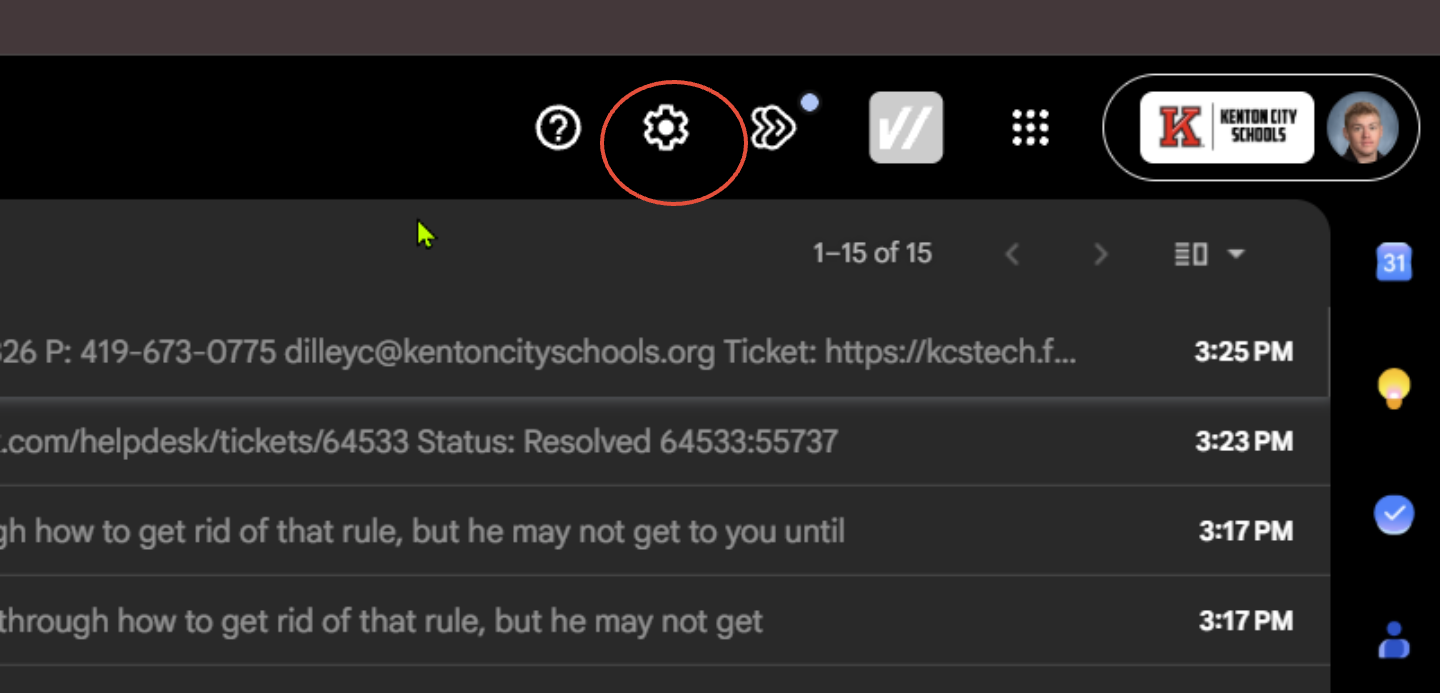
2. See All Settings

3. Click on Filters and Blocked Addresses
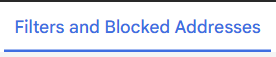
4. Then CLICK DELETE on all set Filters. They will look something like this. You might see "Phishing" "Scam" even your own email. Either way delete all set filters.

Once this is done, you need to sync your new google password to your Mac. Both Laptop and Desktop if you have one. Steps for this listed below.
1.
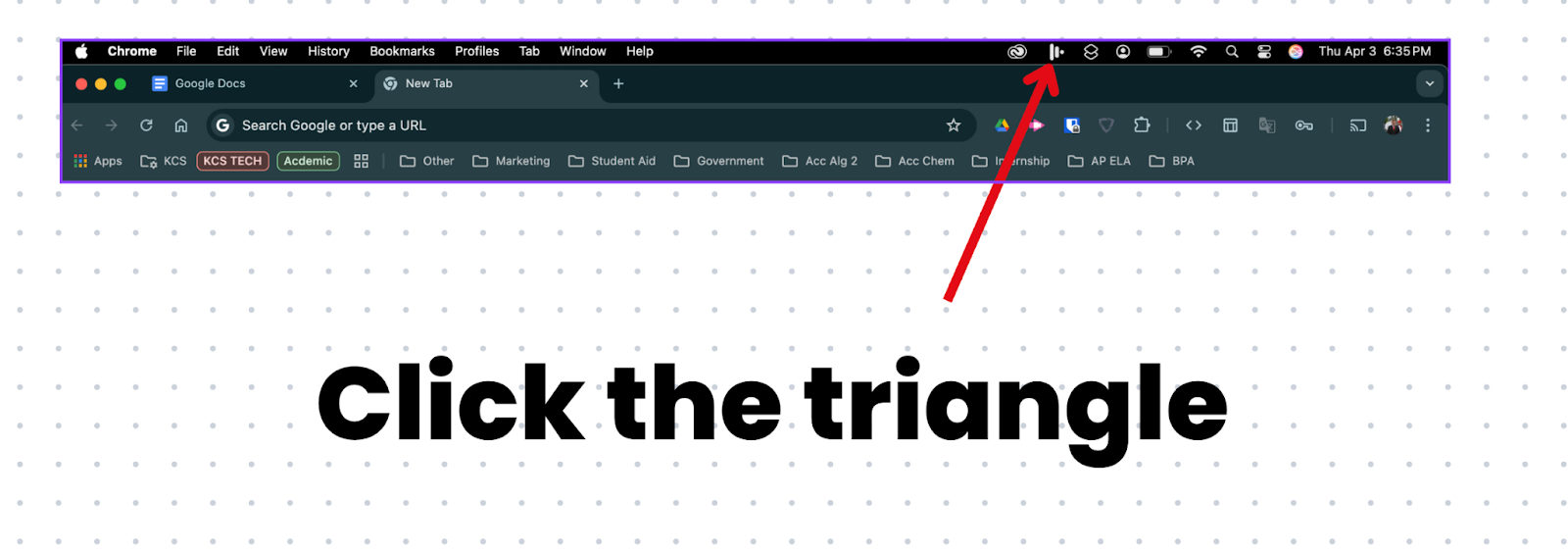
2.

3.
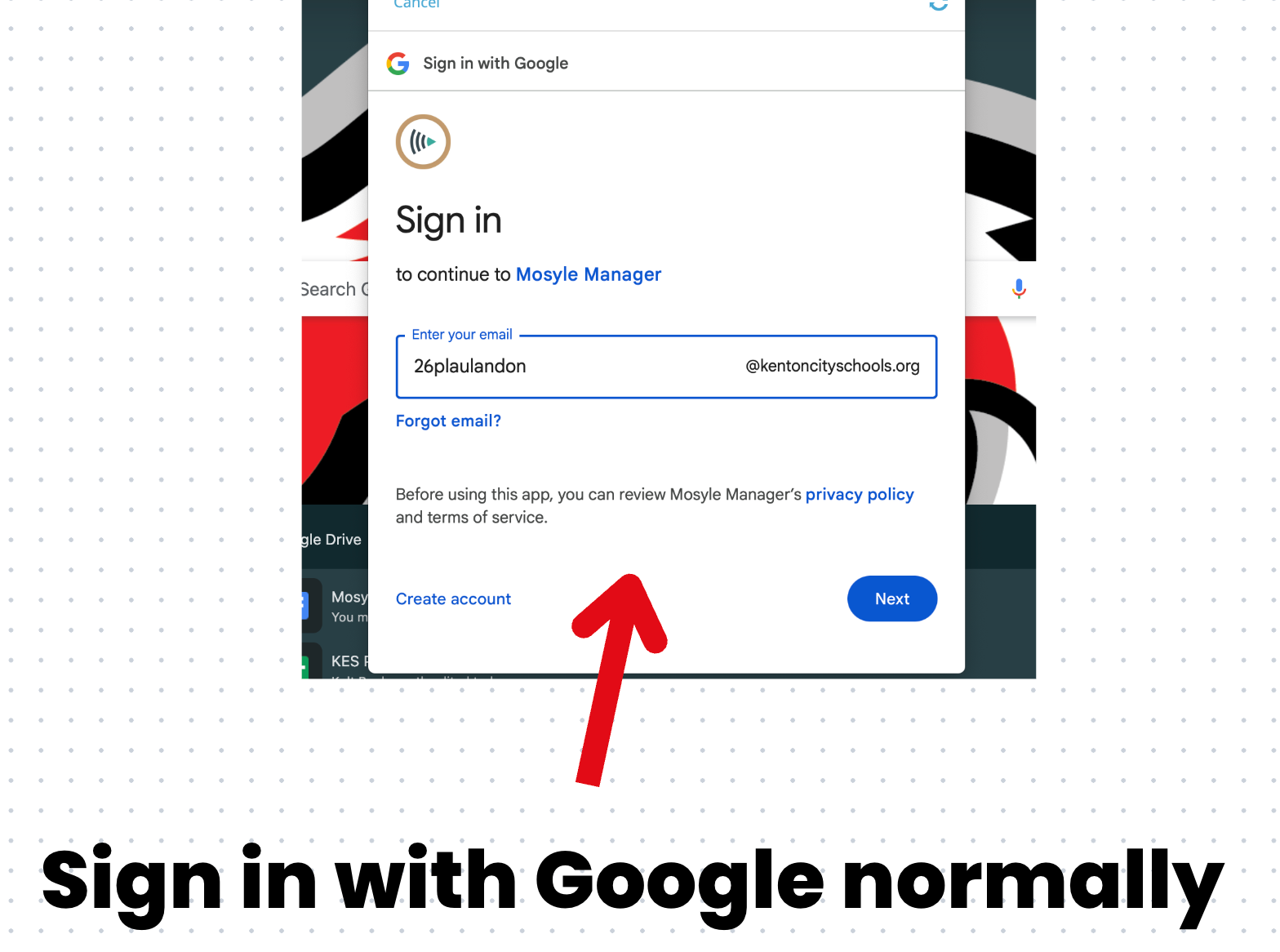
4.
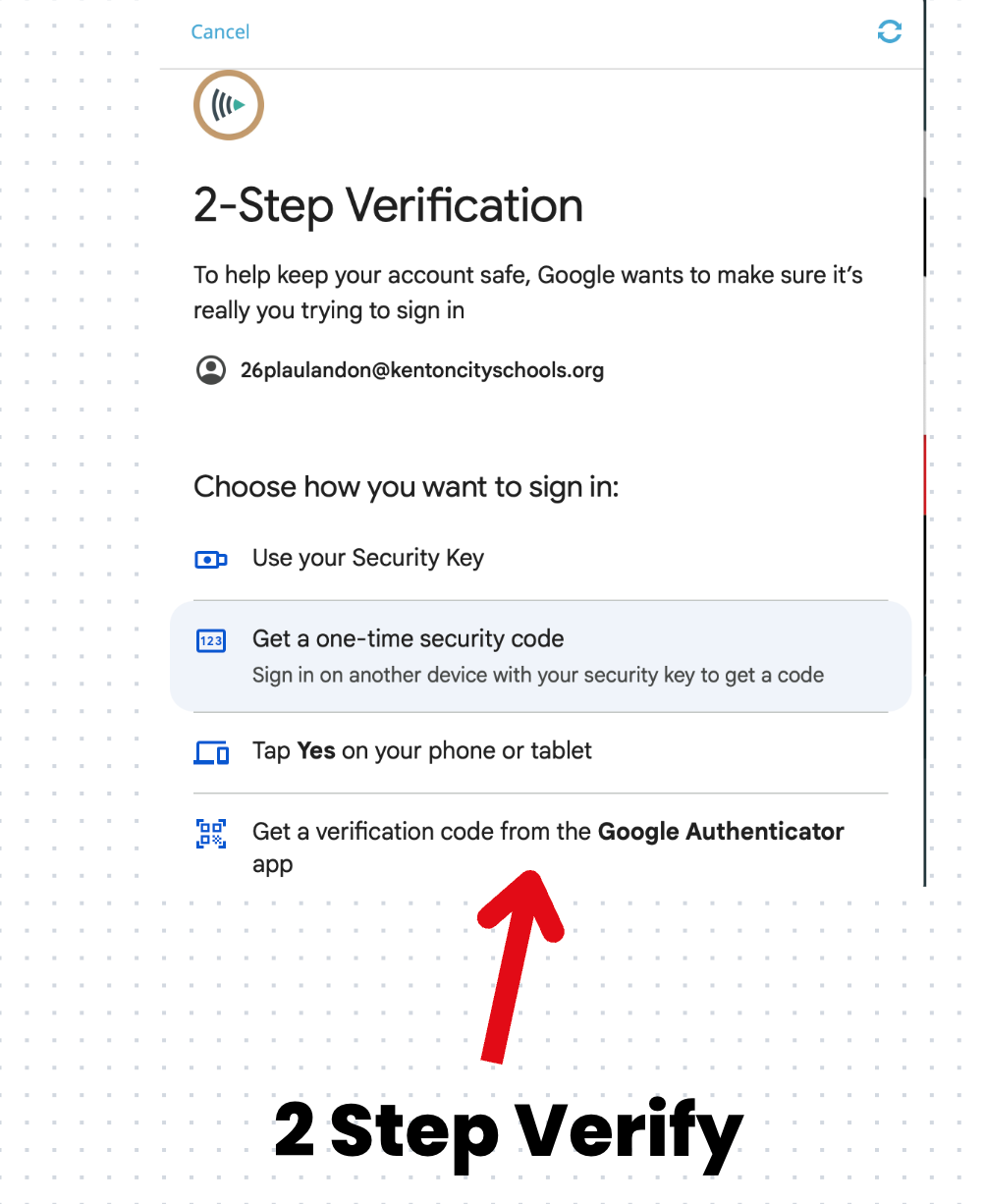
5. Step 5 is IMPORTANT! Enter your old password before it got changed. This is to sync your old to your new. After this your old password doesn't exist anymore, only your new one.
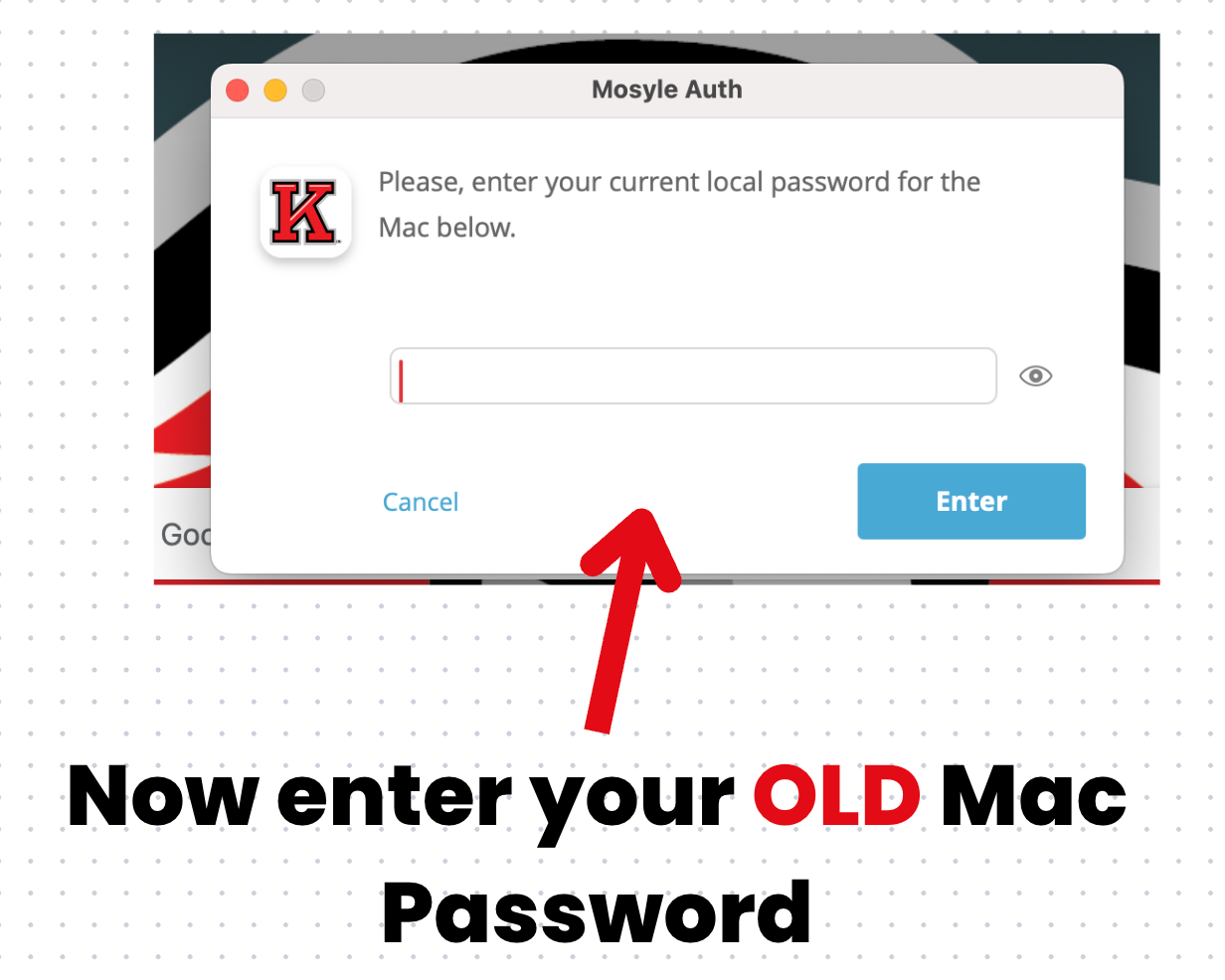
After you follow these steps your account is operational and secure again.
Information you should know!
Hovering over a link: Essential to Staying Secure
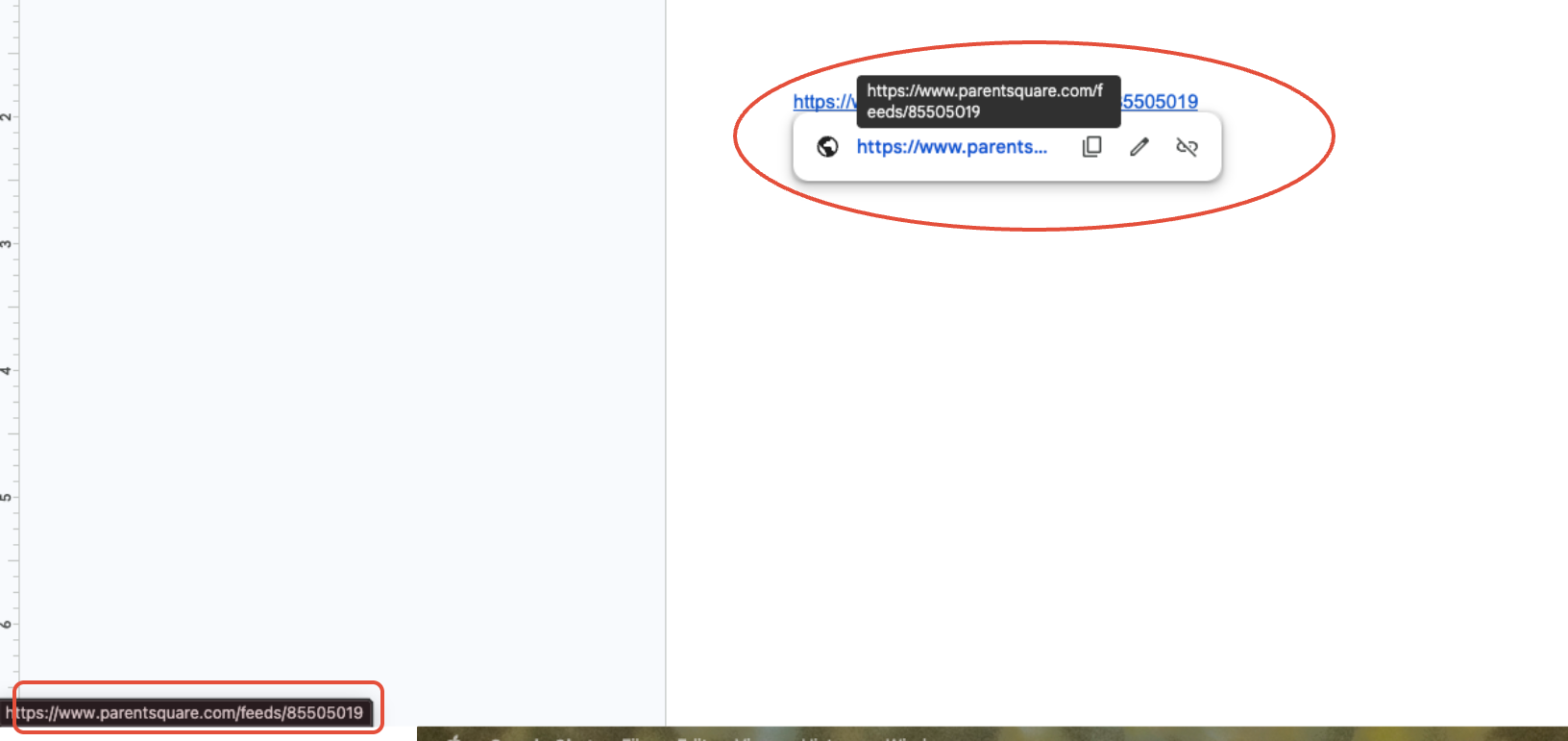
For now on instead of just clicking links without knowing what it's actually taking you to, Do This!
Move your mouse cursor directly over any button or hyperlinked text without clicking it. Look at the bottom-left corner of your web browser or email window—a small preview bar will appear displaying the exact web address the link leads to.
Was this article helpful?
That’s Great!
Thank you for your feedback
Sorry! We couldn't be helpful
Thank you for your feedback
Feedback sent
We appreciate your effort and will try to fix the article