TABLE OF CONTENTS
- Using the copier special features when printing from a Chromebook or in Chrome on macOS/Windows
- Accessing the special features of the copiers when printing from macOS on the Macbooks or Mac Minis
Using the copier special features when printing from a Chromebook or in Chrome on macOS/Windows
Almost all print jobs from the Chromebooks will be printed on the printer kcs-copier.There are a few features of the copiers that you can use from the Chromebook. When printing from the Chromebook to the copiers, you will use Papercut Mobility, an extension that is already installed in Chrome when you sign in with your KCS Google account. To check that you're ready to print, click on the puzzle piece in the toolbar and select Papercut Mobility:
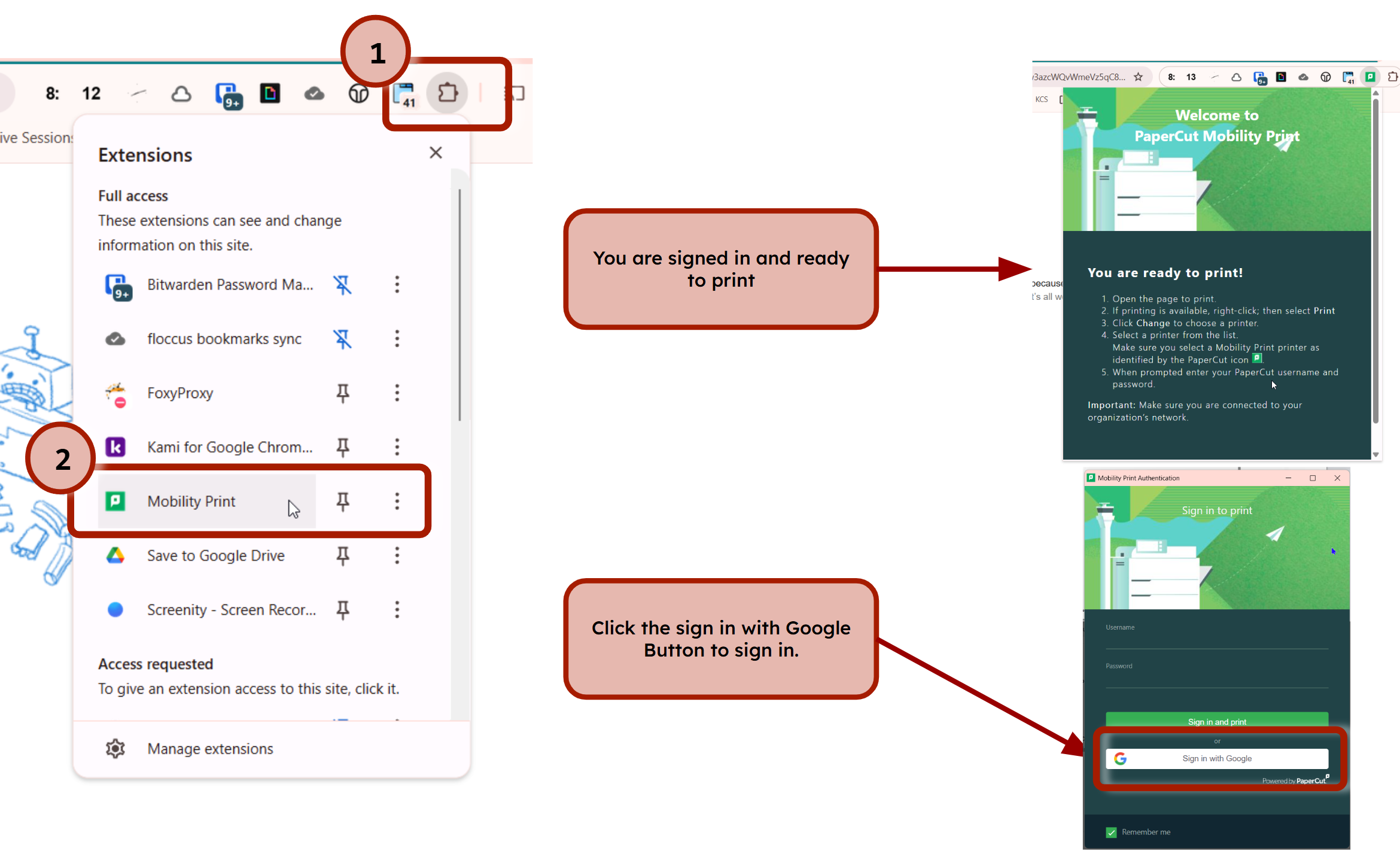
Sign in if you need to.
PRINTING WITH PAPERCUT MOBILITY ONLY WORKS WHEN YOU ARE ON THE SCHOOL NETWORK!Printing in Black & White or Color
When open the print dialog, there is an option to select whether you want to print in black & white or color:
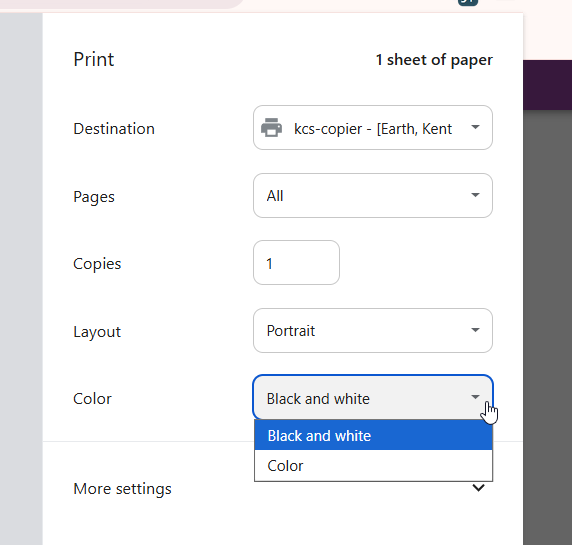
This option has no effect for the non-color copiers, but if you want to print something in color you will need to select color here and then pick up your print job at the color copier in the office.
When you pick up your print job it will let you know if it is printing it in color or black & white. If the print job was sent in color you can also change how it's going to print by clicking Print as grayscale or changing the print settings by clicking the right > beside the print job and toggling between Grayscale and Color.
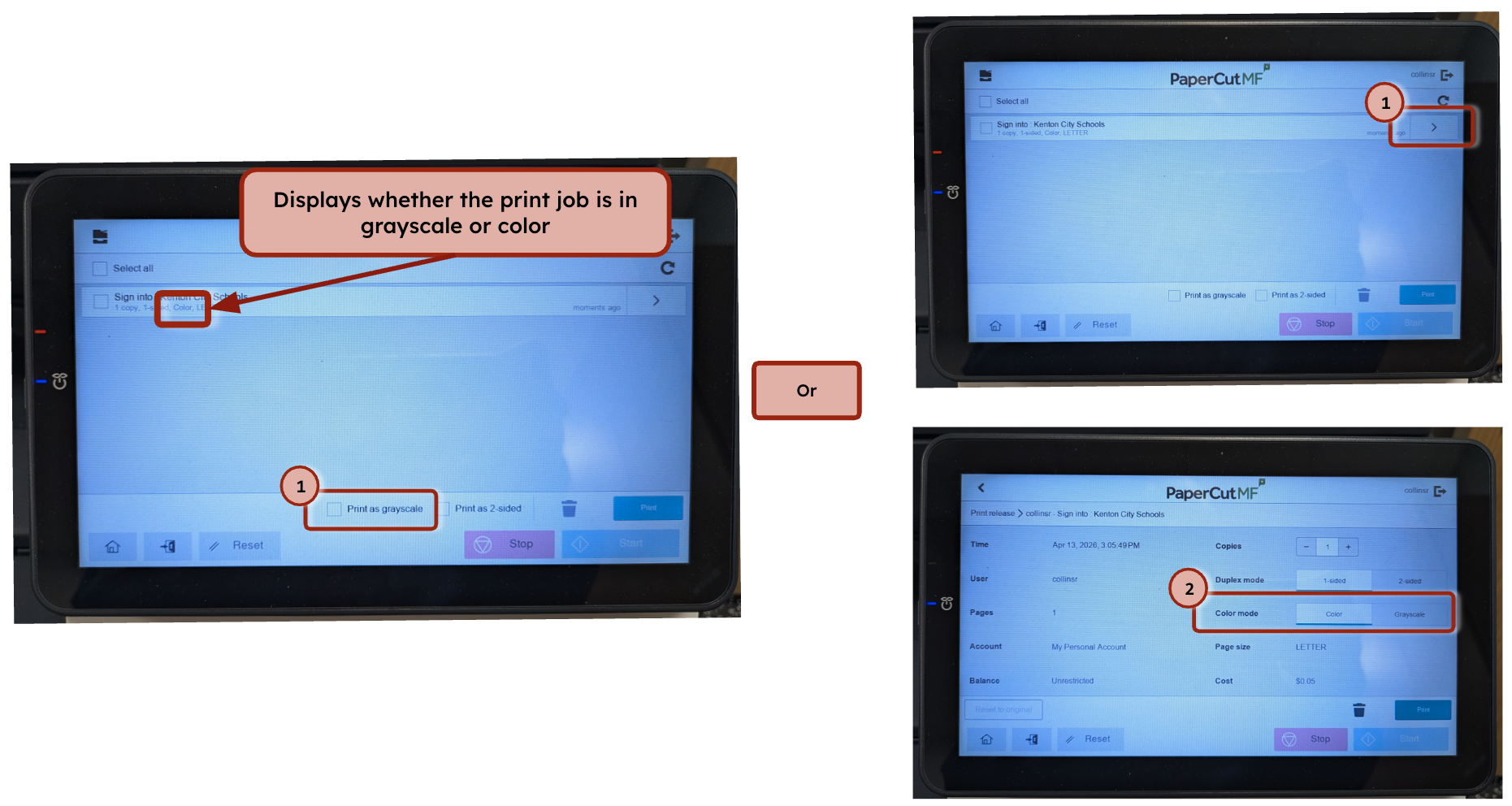
If the print job was sent to the copier in Black & White you will not be able to switch it to color on the copier.Printing a range of pages
In the pages dropdown select Custom and put the range you want to print:
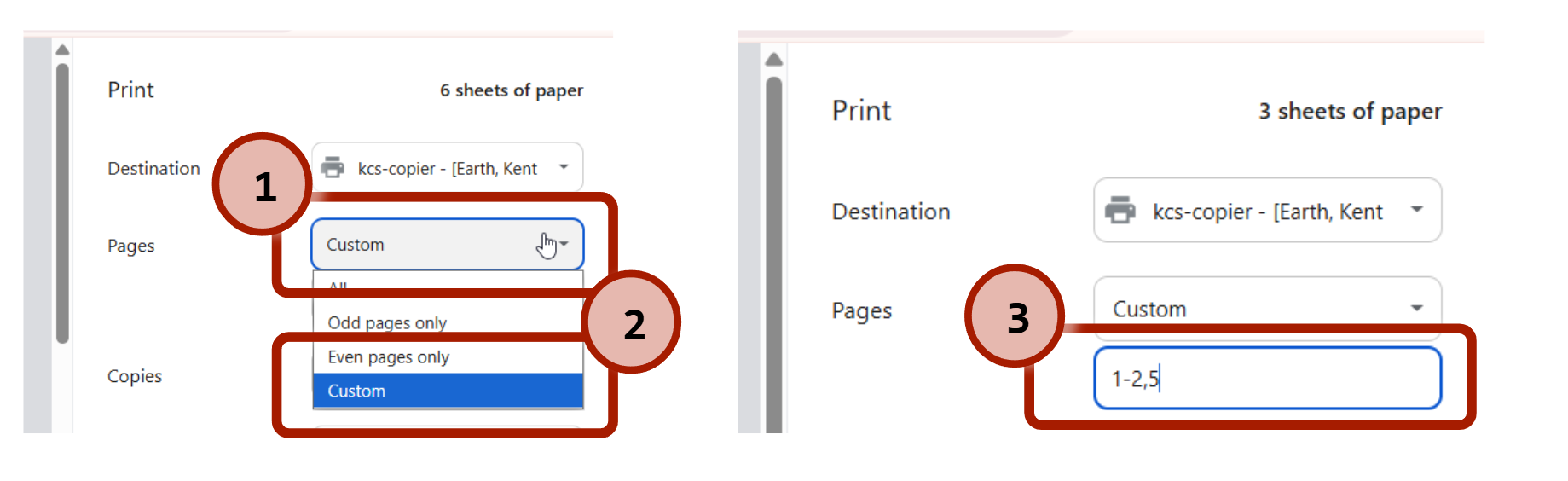
Use a hyphen for a contiguous range and a comma to separate non-contiguous pages. For example, entering 1-2,5 will print pages 1,2, and 5.
Duplex printing
Papercut Mobility is limit on the options it offers, and duplex printing is one of the features missing. To print double-sided, print as normal. On the copier, before releasing the print job, tap the Print as 2 sided checkmark or the > beside the print job and select Double-sided Printing.
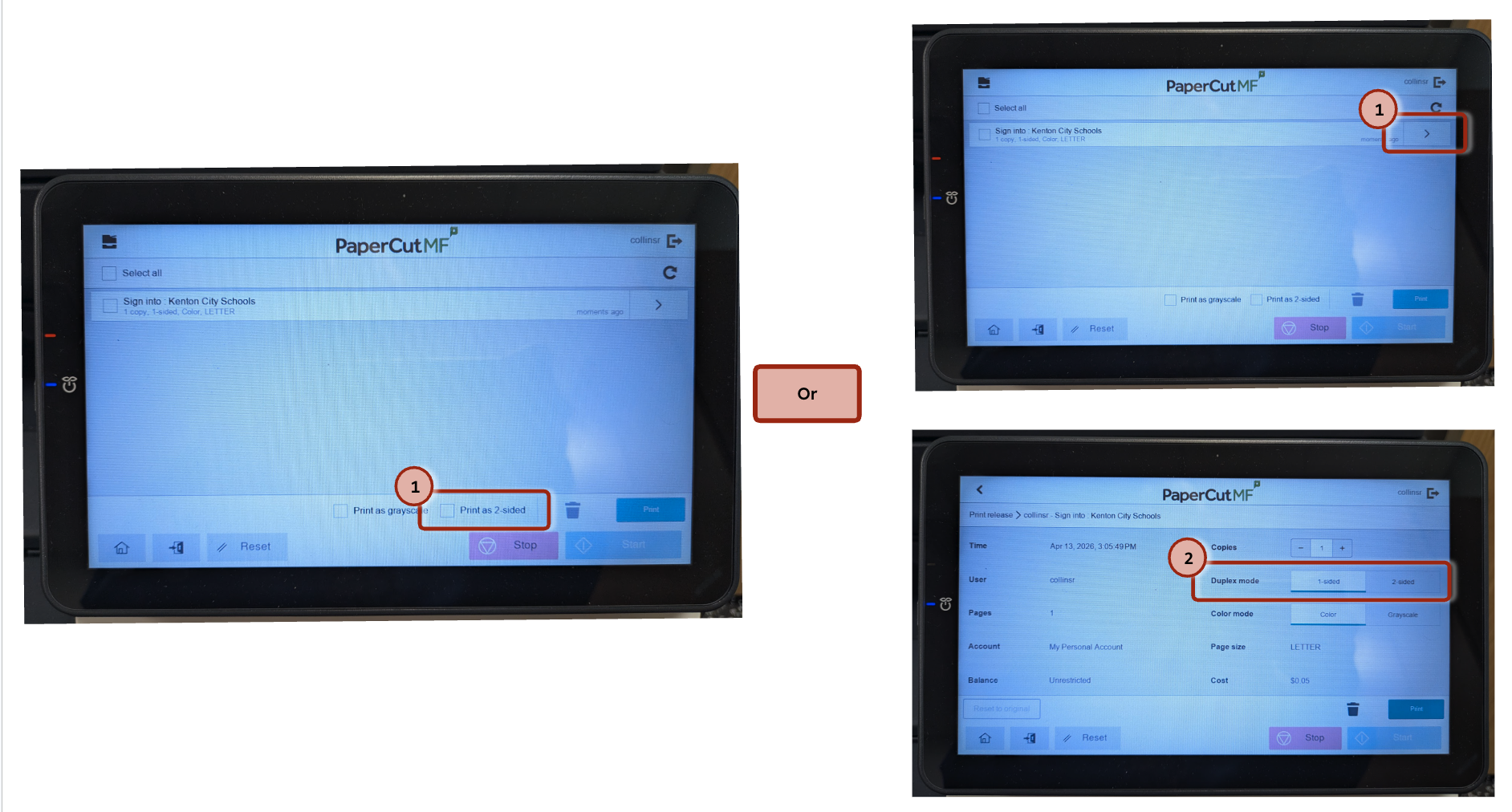
The job will now print double-sided.
Staple printing
Stapling is not an option exposed by Papercut Mobility, but it is possible to automatically staple your print job. Instead of select kcs-copier as your printer, select kcs-stapler-copier:
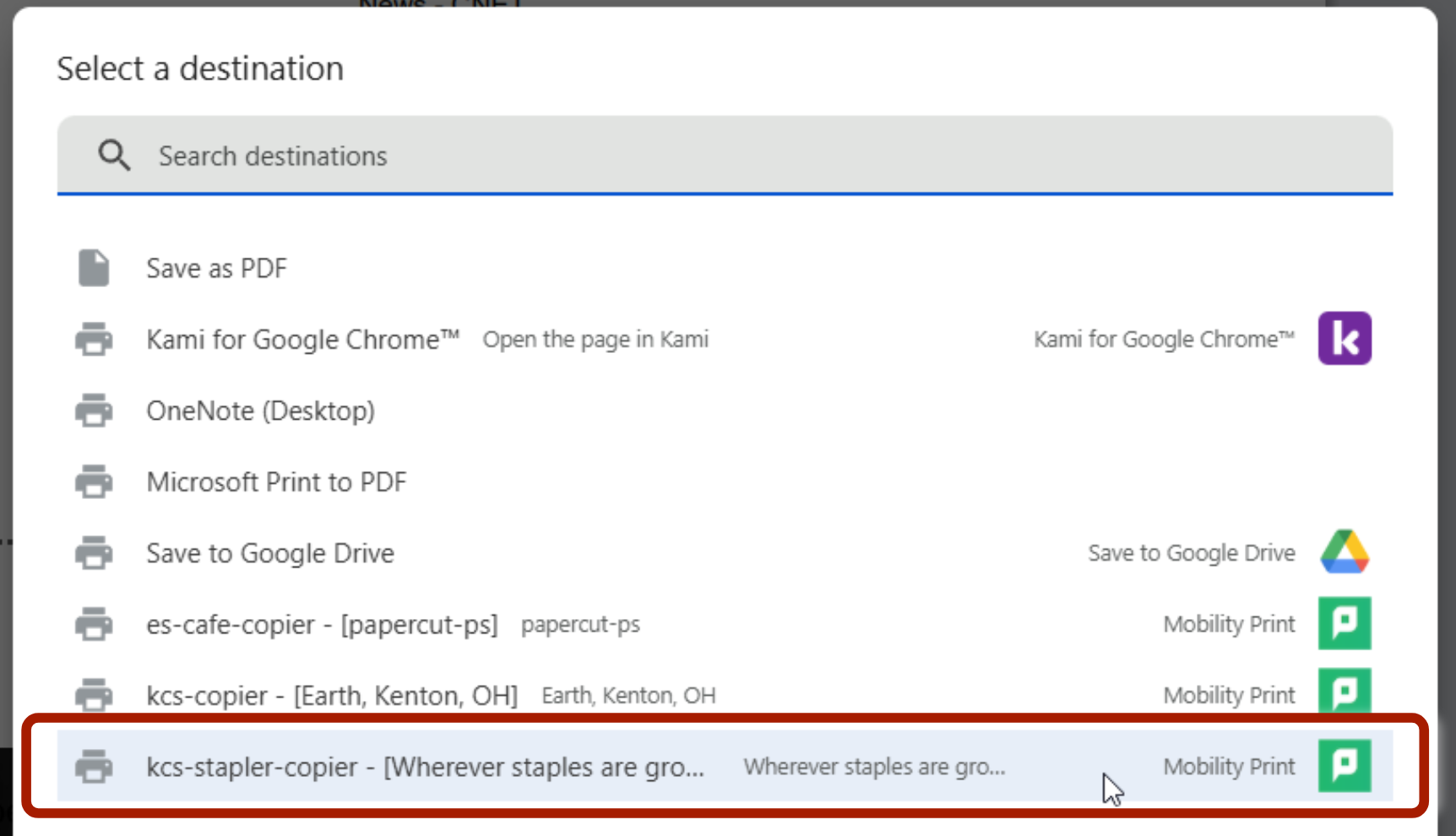
The print job will automatically be stapled when you release the print job at the copier.
Accessing the special features of the copiers when printing from macOS on the Macbooks or Mac Minis
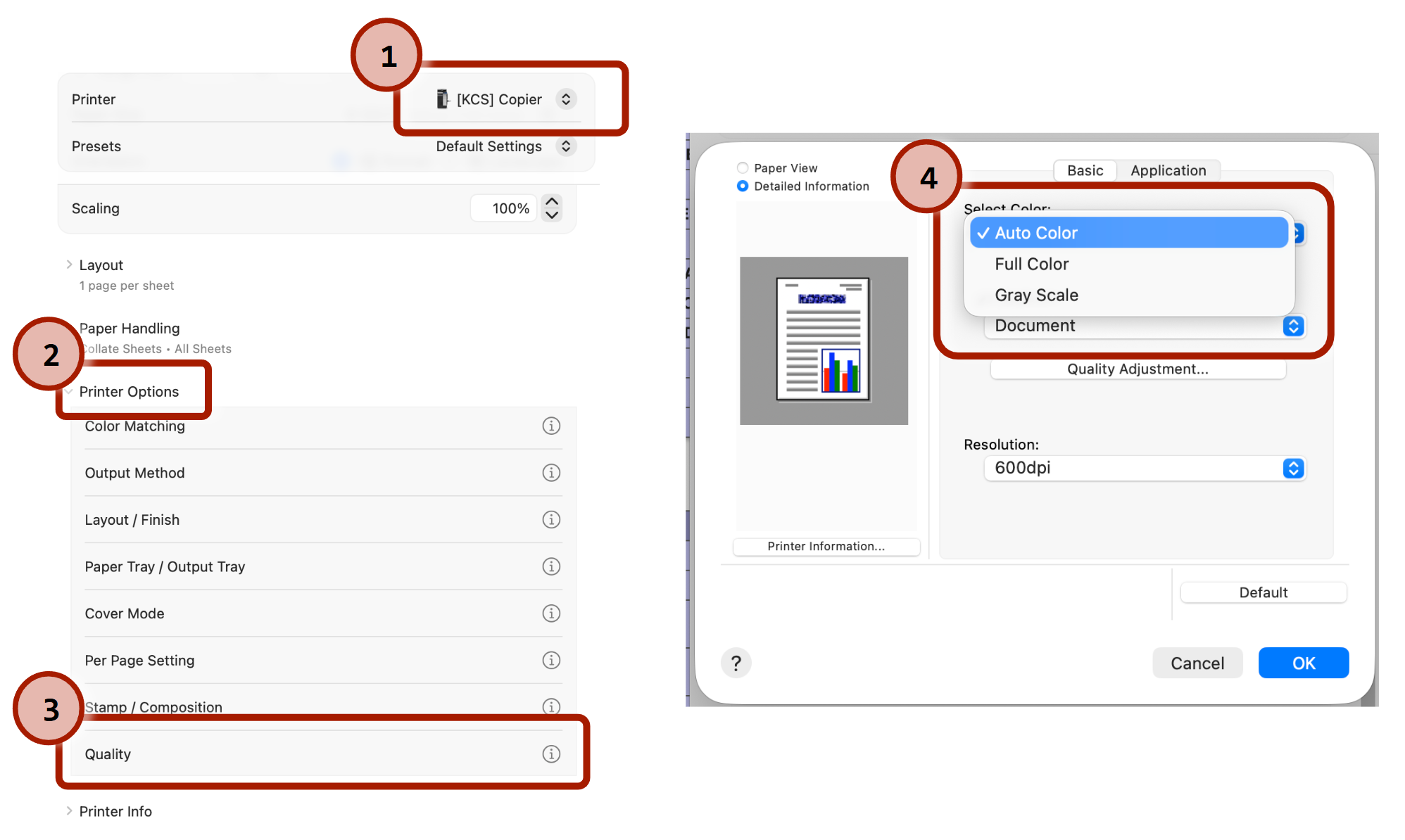
To get access to all of the features of the copier you will print to [KCS] Copier (note that KCS is in brackets).

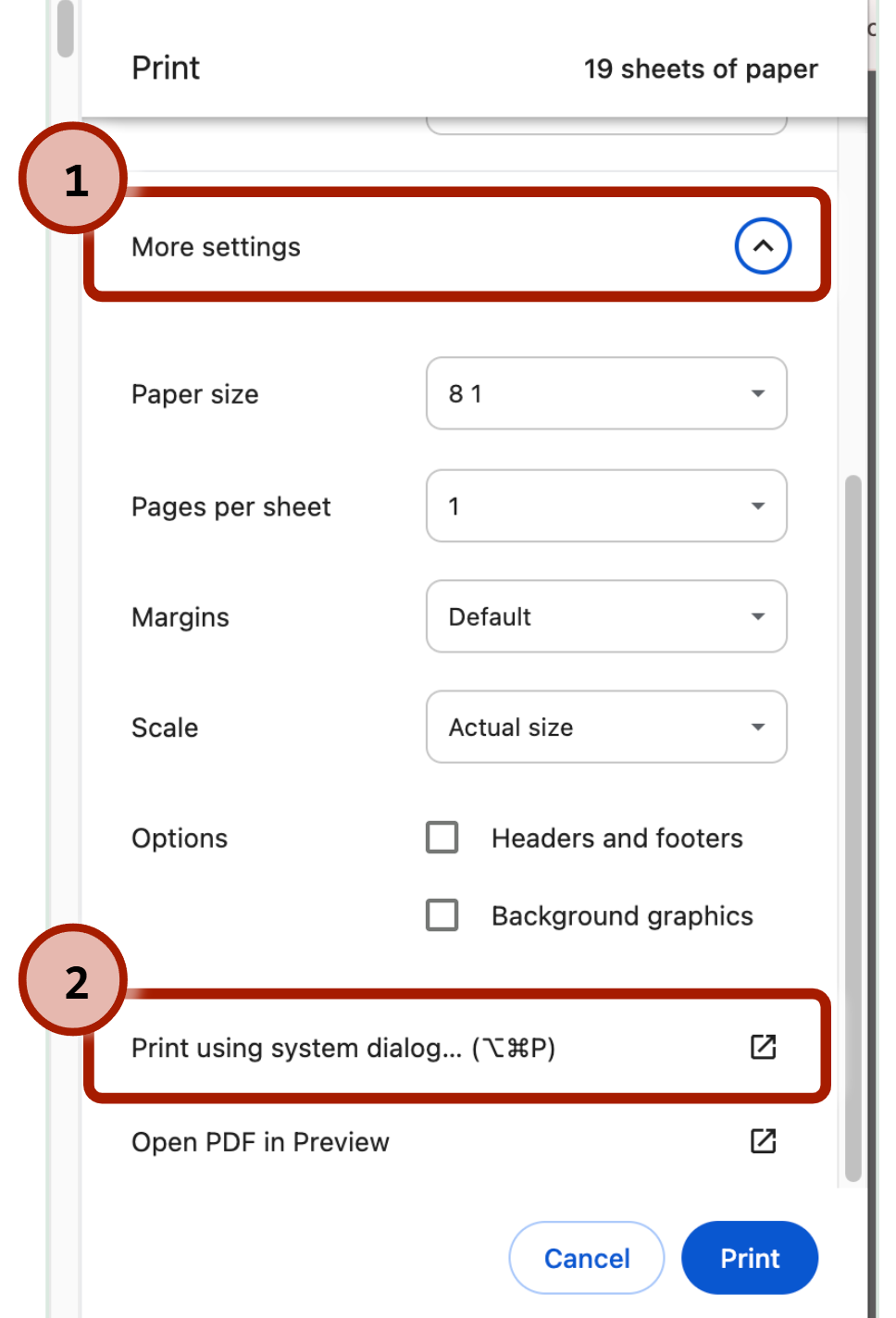
If you are printing from Chrome, you will need to select Print using System Dialog:
Printing in Black & White or Color
Select the [KCS] Copier and scroll down to Printer Options. Click Quality and then select Auto Color, Full Color, or Gray Scale:
When you pick up your print job it will let you know if it is printing it in color or black & white. If the print job was sent in color you can also change how it's going to print by clicking Print as grayscale or changing the print settings by clicking the right > beside the print job and toggling between Grayscale and Color.
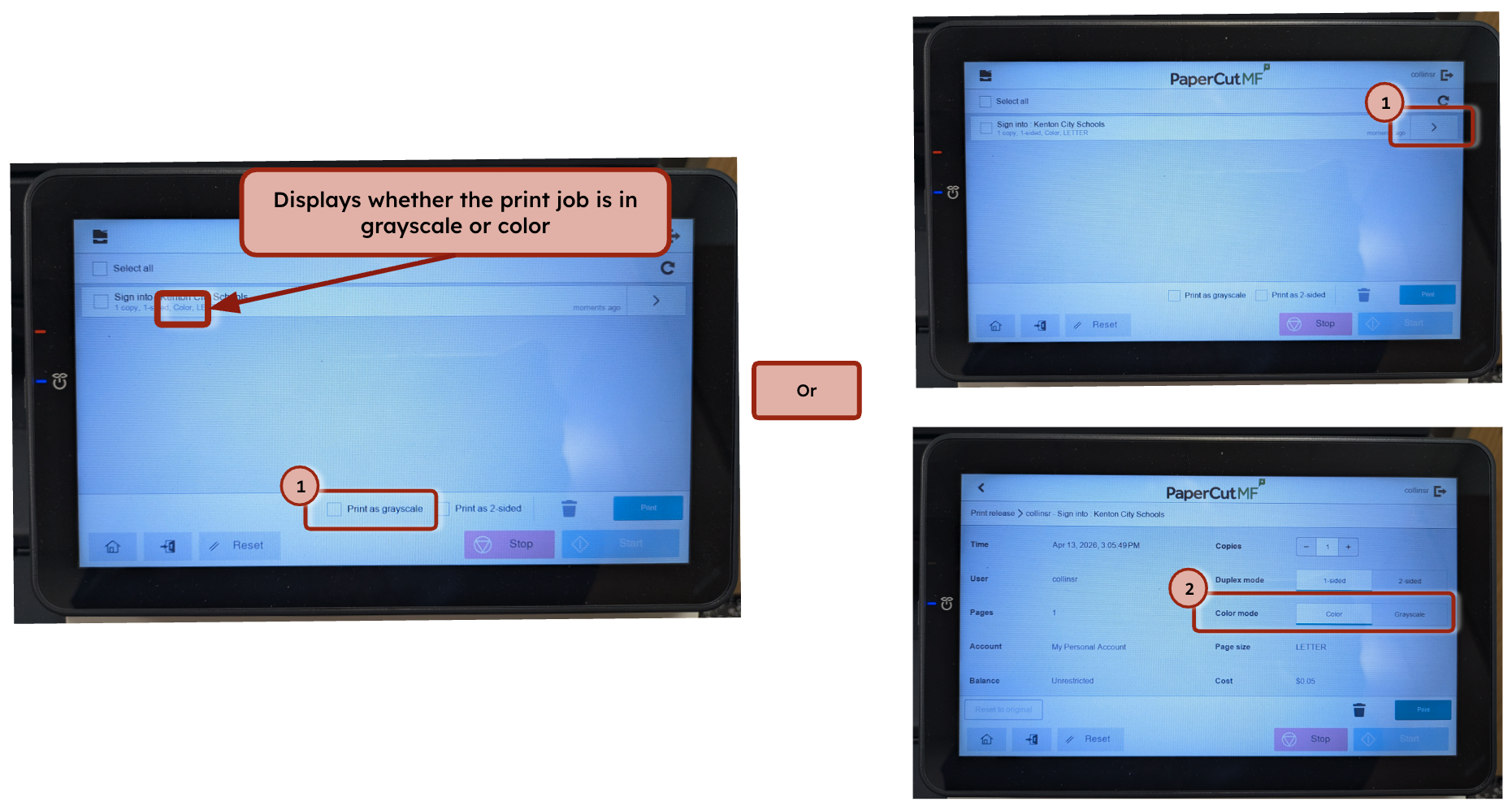
If the print job was sent to the copier in Black & White you will not be able to switch it to color on the copier.Printing a range of pages
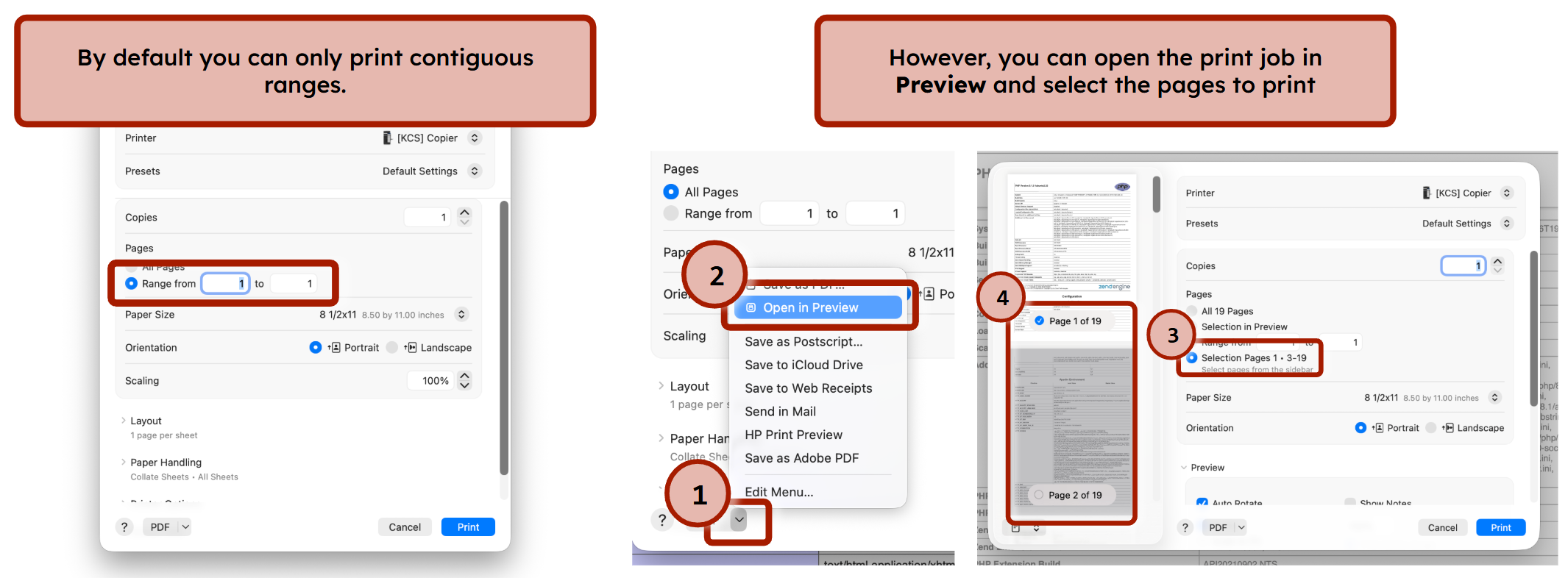
To print a contiguous range of pages, you can select the range under Pages. However, to select a non-contiguous range of pages, open up the job in Preview and print from there:
Duplex printing
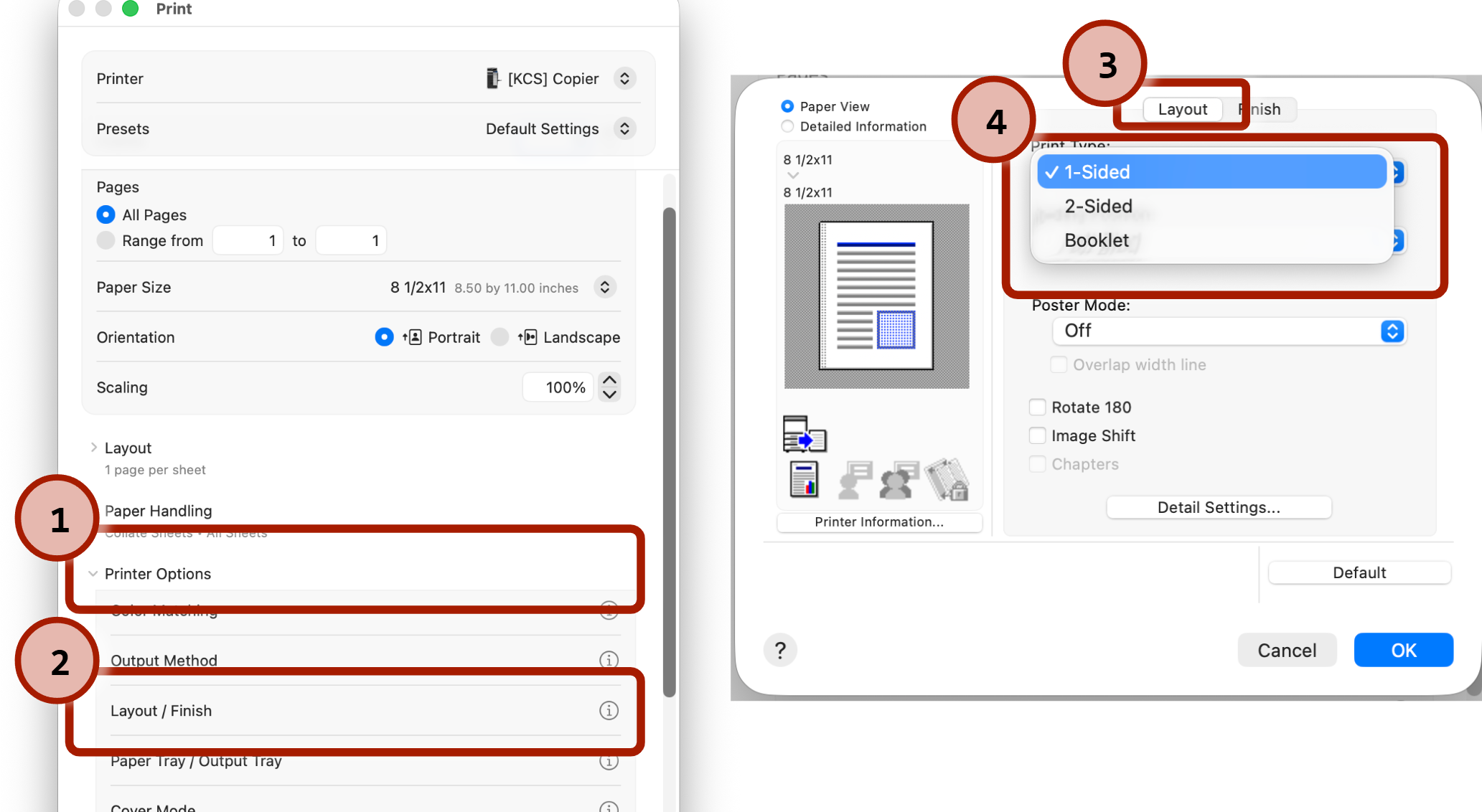
To print double-sided, go to Printer Options and click on Layout/Finish. Under the Layout tab you can select the Print Type:
When releasing the print job from the copier you can also change the print job to duplex printing by select Print as 2-sided or clicking on the > beside the print job and selecting Two-sided.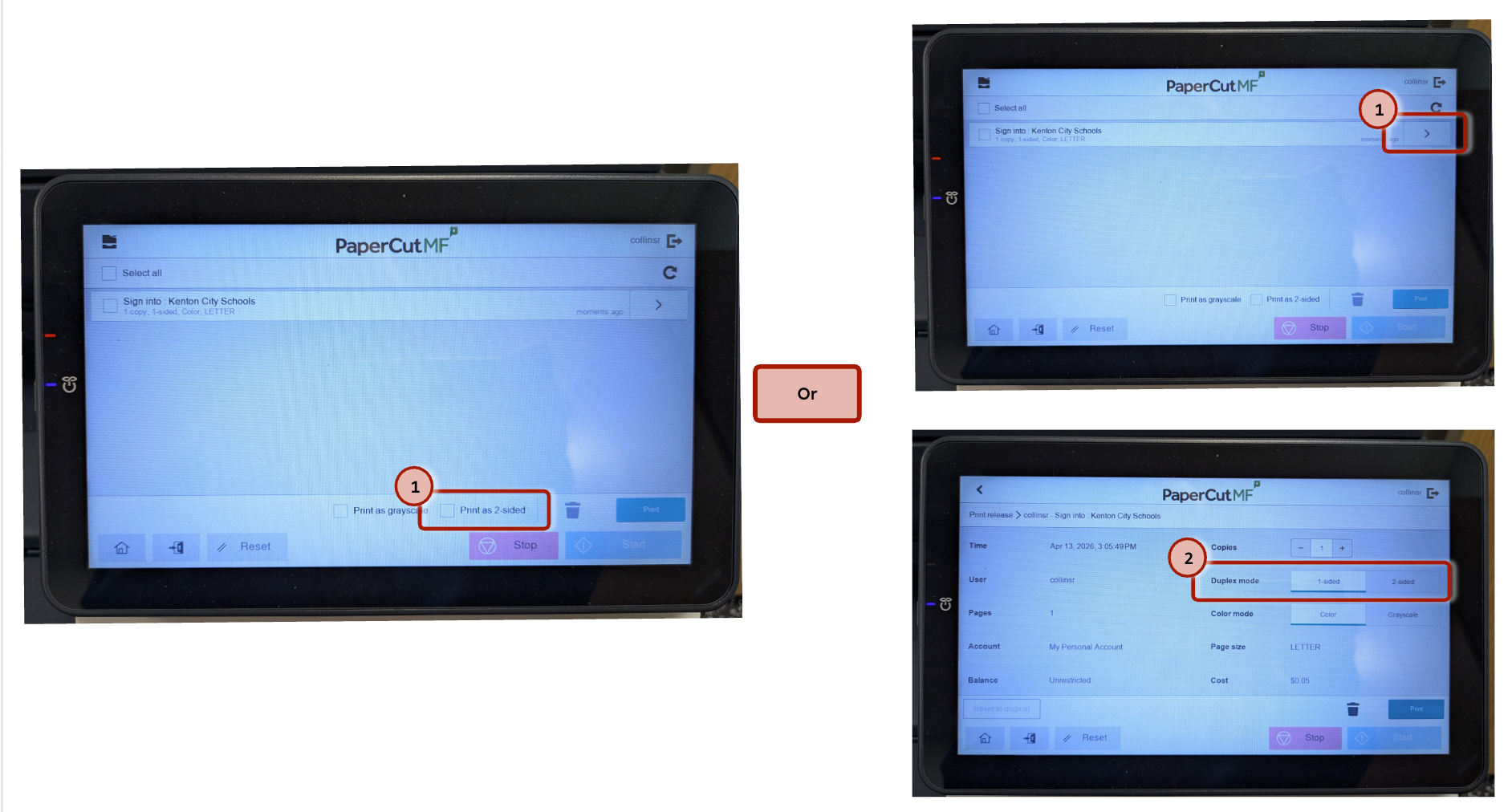
Staple printing
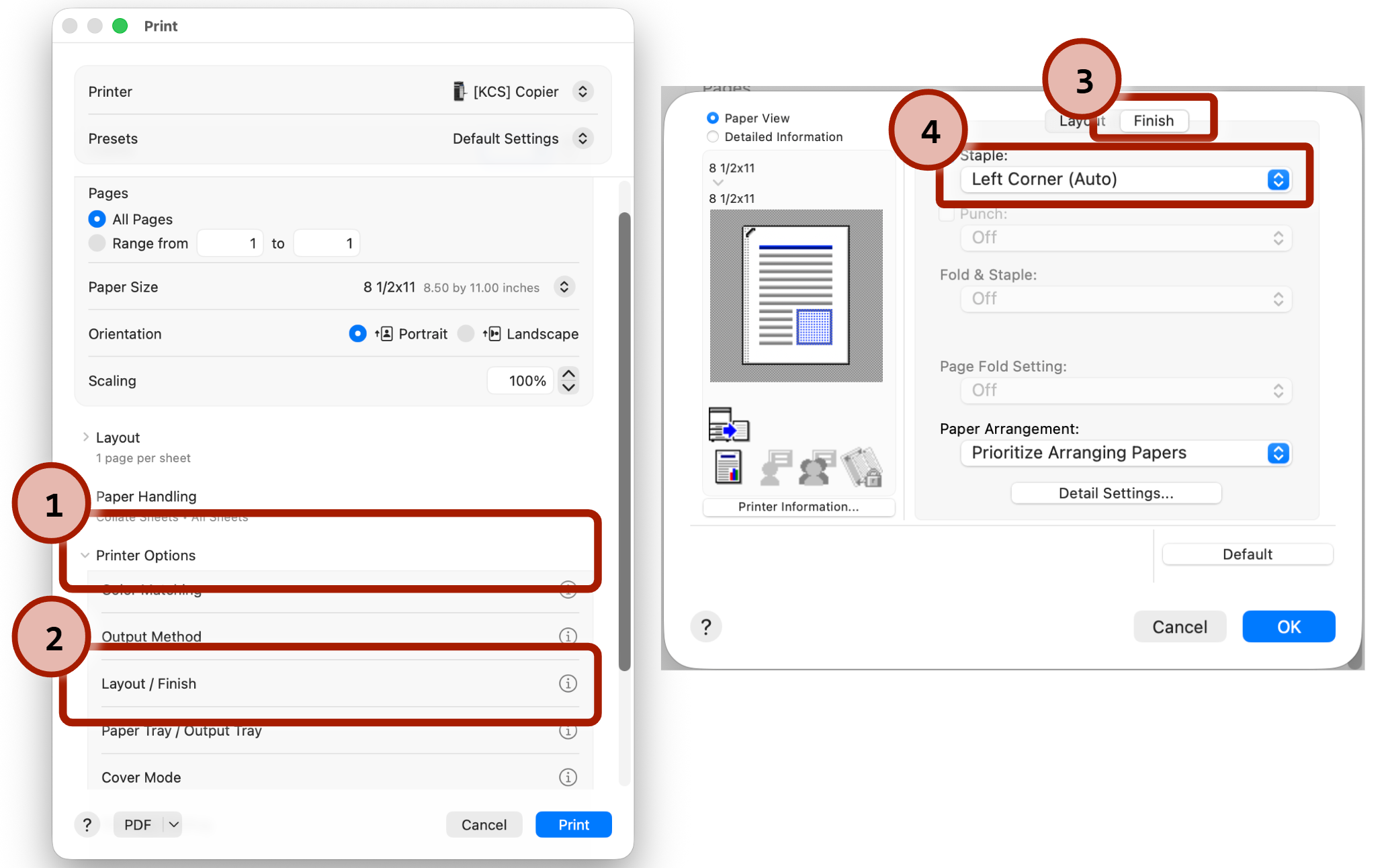
To staple your print job, go to Printer Options and click on Layout/Finish. Under the Finish tab you can select Staple:
Expert Tip for macOS
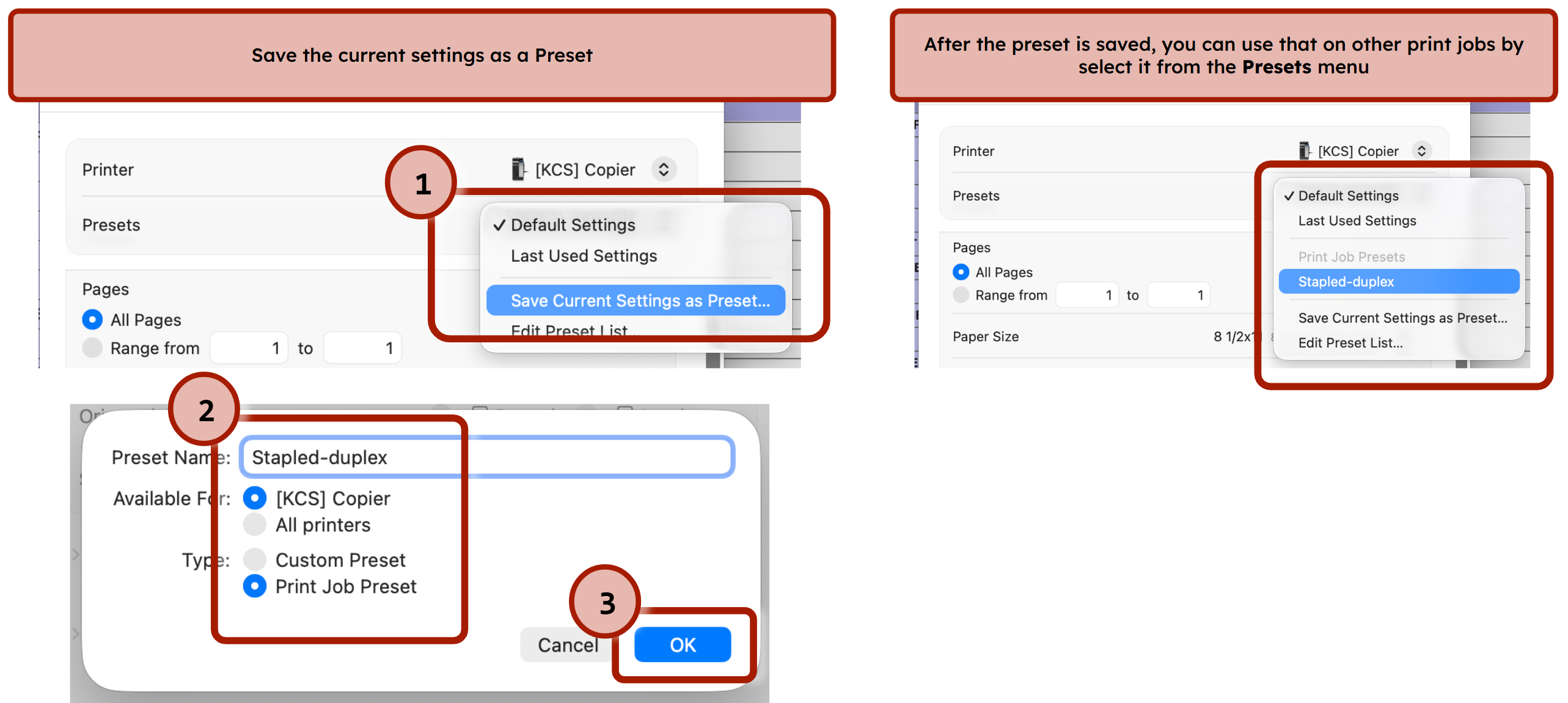
To print a black & white print job, double-sided, and stapled requires quite a few steps. macOS has to option to save the current options to a printer preset. Set up the print job as you want it, selecting the features you need. Once finished, don't hit Print yet. Under the printer selection drop down there is a Presets option. Click it and select Save Current Settings as Preset. Give the preset a name, select [KCS] Copier under Available For and set the type to Print Job Preset. Click OK.
Was this article helpful?
That’s Great!
Thank you for your feedback
Sorry! We couldn't be helpful
Thank you for your feedback
Feedback sent
We appreciate your effort and will try to fix the article